
Zenome reference

Services and clinic setup

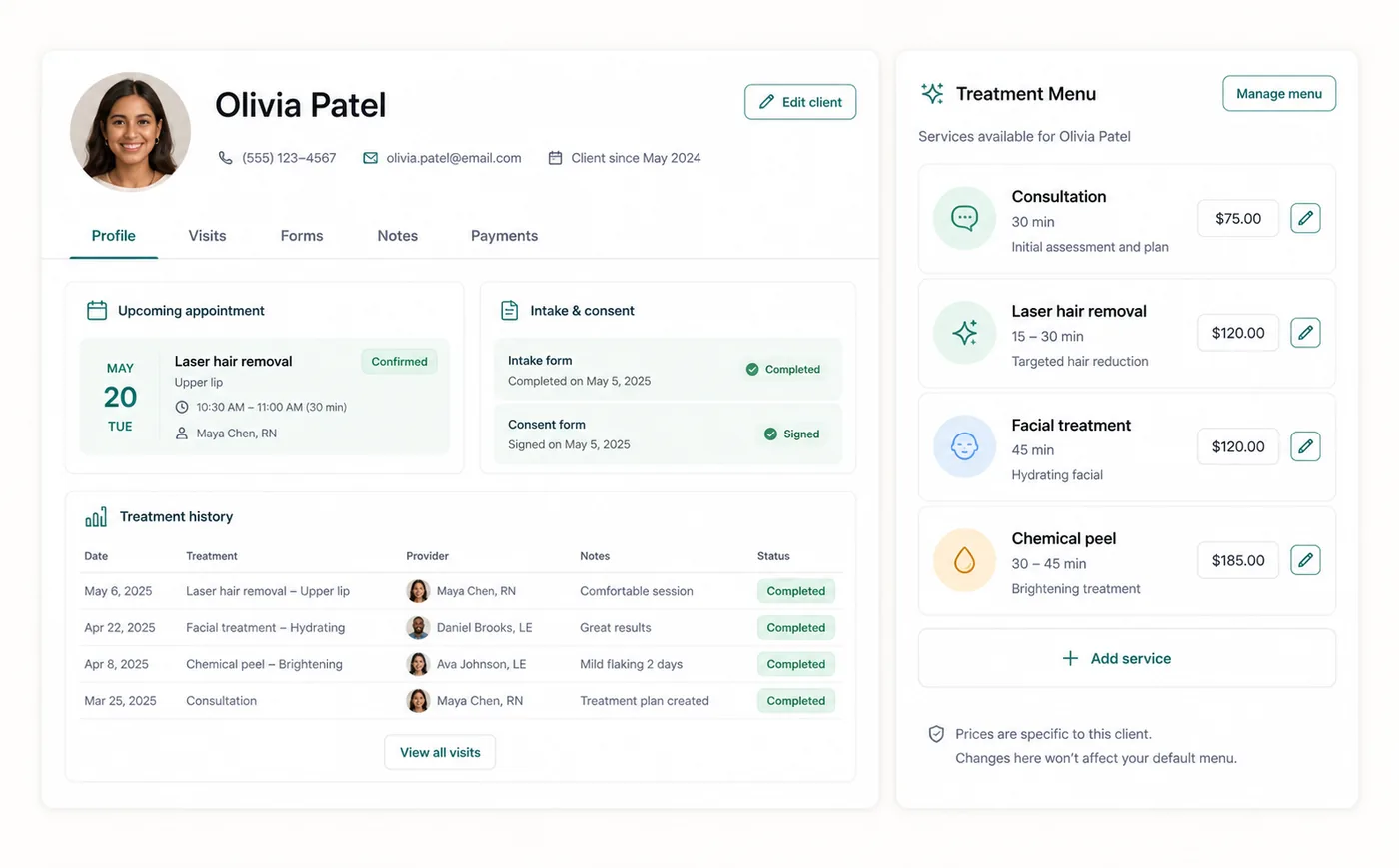
Owners configure clinic identity, branding, disciplines, treatments, duration, pricing, tax assignment, practitioners, booking visibility, and display order from Settings.

Zenome service and clinic configuration workspace

Shape your service menu

Clinic brandingService categoriesPricing and tax
A preview of the Zenome workspace. Your screen may vary slightly based on clinic settings and staff access.

Set it up

Before the workflow starts

  • Complete Clinic Info and upload or link the clinic logo in Branding.
  • Create disciplines, order their public tabs, and add treatments under the right discipline.
  • Set duration, price, tax rule, practitioner assignment, and online visibility for every treatment.

Use it

The normal workflow

  • Use Services search to shortlist treatments as you type.
  • Open a treatment to update its operational and public-booking details.
  • Review the public booking page after changing discipline, visibility, or ordering.

Good to know

Helpful reminders

  • Moving a treatment does not publish it unless both the category and treatment are visible online.
  • A treatment uses the tax rule selected by the clinic.
  • Each clinic keeps its own logo, colors, details, and client-facing documents.

Common tasks and fixes

Step-by-step help